How to Use Grok: A Simple Guide for Beginners
Discover how to use Grok AI, Elon Musk’s real-time chatbot on X (Twitter). Learn its features, best prompts, personality modes, and how it compares to ChatGPT. A simple guide for beginners.


On this page
- How to Access Grok AI (Who Can Use It?)
- How to Ask Grok a Question on X
- How to Use Grok AI for Different Tasks
- The Best Grok AI Prompts to Try
- What Grok Can Do Now: Chat, Imagine, Voice and More
- Is Grok Free? Plans and Pricing
- Grok Bot: The Agent Version of Grok
- Grok vs. ChatGPT: Which One is Better?
- How to Use Grok for Coding and Tech Support
- Limitations of Grok AI (What It Can’t Do)
- Privacy: How to Stop Grok From Training on Your Data
- Pro Tips for Using Grok Like a Pro
- Should You Start Using Grok?
- Grok FAQ
- Is Grok free to use now?
- How do I use Grok for free?
- What images can you make with Grok?
- Why did my Grok video come out at 480p instead of 720p?
- Where are Grok Companions available?
AI chatbots are everywhere, but Grok is different.
Built by Elon Musk's xAI (its docs now sign as SpaceXSI), it's designed to be fast and witty, with up-to-date answers.
Before it answers, Grok can decide on its own to search public posts on X and run a real-time web search, according to X's Grok help page. That makes it handy for news and anything trending.
Plus, it has a playful personality, adding humor to conversations.
If you want to use Grok for writing, coding, research, or just fun, this guide will show you exactly how to start.
ALSO READ: 10 ChatGPT Deep Research Prompts For Marketing

How to Access Grok AI (Who Can Use It?)
Anyone can start using Grok for free. Paid plans raise your limits, and they're now sold as one bundle called The X Subscription (prices below).
There are three ways in:
| Where | How to open it | Good to know |
|---|---|---|
| X app or x.com | Tap the Grok icon in the navigation bar | Works on iOS, Android and the web, in every country where X is available |
| grok.com | Sign in on the web | xAI recommends grok.com in a standard Chrome or Chromium browser |
| Grok app | Download it from the App Store or Google Play | Your chats, settings and subscription sync between the web and the apps |
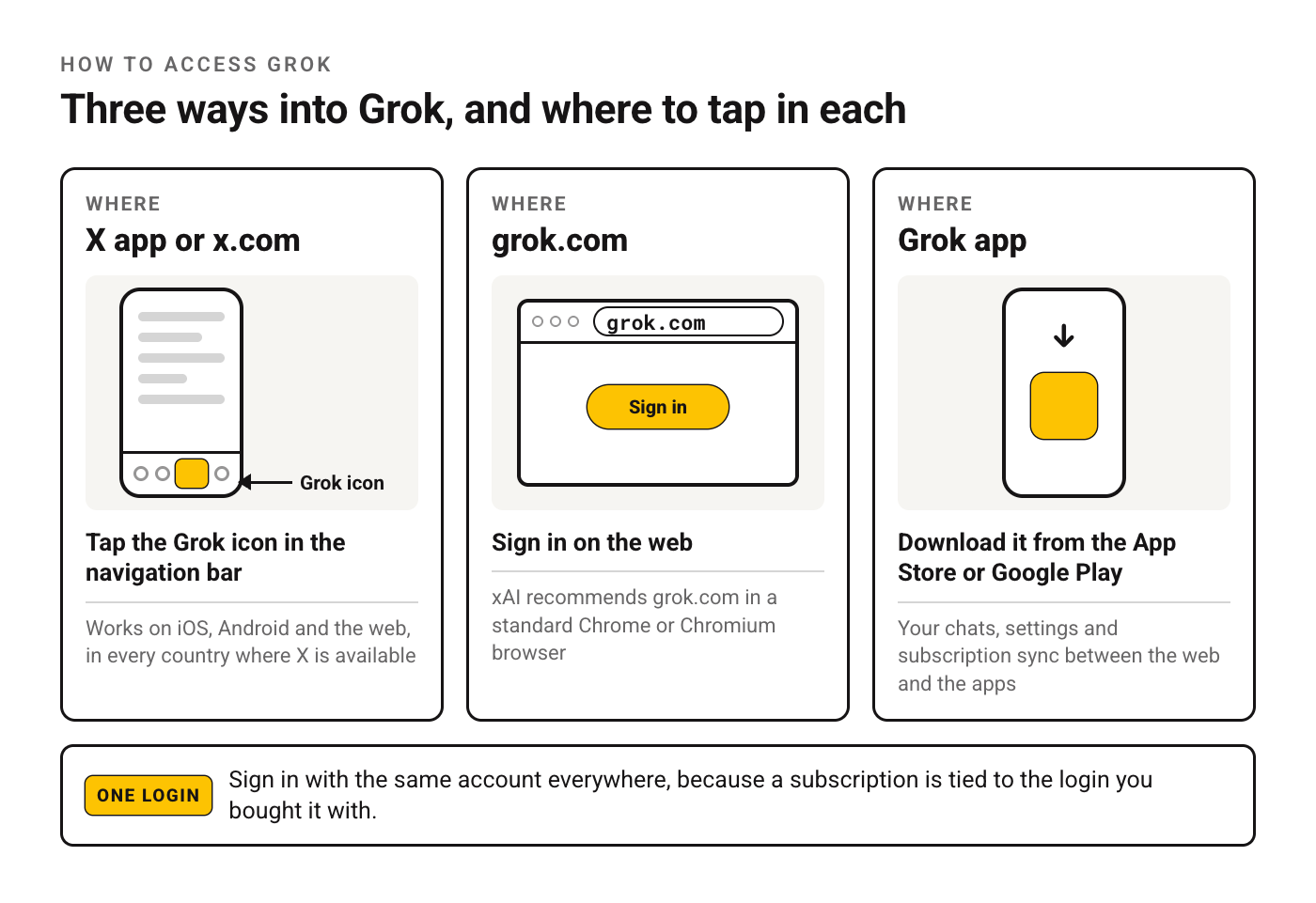
On a phone, you can use either the Grok app or the Grok tab inside the X app. If you use both, sign in with the same account everywhere, because a subscription is tied to the login you bought it with.
How to Ask Grok a Question on X
X's own help page lists three steps:
- Open the X app on iOS or Android, or go to x.com.
- Select the Grok icon in the navigation bar.
- Type your question, or start from one of the suggestions.
There's no setup beyond that. Write the way you'd message a well-read friend, then follow up in the same chat to narrow the answer down.
How to Use Grok AI for Different Tasks
Grok isn’t just another chatbot—it can do a lot more than answer questions.
Here’s what you can use it for:
• Real-time information – Get the latest news, trends, and facts.
• Writing help – Generate tweets, captions, blog ideas, and ad copy.
• Learning & research – Summarize articles, explain concepts, and fact-check info.
• Coding support – Write and debug code in Python, JavaScript, and more.
• Brainstorming ideas – Business names, product ideas, or creative storytelling.
Just type what you need, and Grok will generate a response instantly.
The Best Grok AI Prompts to Try
If you want better responses, you need better prompts.
Try these and swap out the placeholders [like this] for what you need.
For real-time news & updates:
• “Give me a quick summary of today’s top news in [tech/business/sports].”
• “What’s trending on X right now in [your topic]?”

• “Summarize the latest updates on [specific event or company].”
For social media content:
• “Write a tweet about [Mondays, coffee, work life] that will get engagement.”
• “Create a viral Twitter thread about [your topic].”
• “Give me 5 Instagram captions for a post about [travel, fitness, motivation].”
For learning & research:
• “Explain [blockchain, quantum physics, AI] like I’m 5.”
• “Summarize this article: [paste link or text].”
• “List the pros and cons of [your topic] in simple terms.”
For business & marketing:
• "Give me 3 online side hustle ideas for someone with [your skills] and [hours per week] to spare."
• “Write a product description for [your product] that sounds persuasive.”
• “How can I get more sales for my [business type]?”
For coding & tech support:
• “This Python code is broken. Fix it: [paste your code].”
• “Explain this error message and how to fix it: [paste error].”
• “Write a simple [JavaScript/Python] script that does [specific task].”
For fun & creativity:
• “Roast AI in one sentence.”
• “Write a sarcastic response to ‘Can AI replace humans?’”
• “Tell me a joke about [your favorite topic].”
The more specific you are, the better Grok’s answers will be.
Try these and see what works best for you.
What Grok Can Do Now: Chat, Imagine, Voice and More
This is what xAI's own Grok overview and FAQ list for the Grok website and apps, checked November 2, 2026:
| Feature | What it does | Worth knowing |
|---|---|---|
| Chat | Questions, brainstorming, writing, working through problems | Also available inside X |
| Imagine | Creates images and video | Every result carries a Grok watermark |
| Voice | Hands-free conversation with Grok | Free-tier limits apply to Chat and Voice |
| File uploads | Reads PDFs, spreadsheets, code, images, audio and video | Up to 150 MB per file; about 100 files at once on the web, 20 on Android |
| Connectors | Lets Grok reach your email, files and calendar inside a chat | Google Drive, Gmail, Outlook, SharePoint, OneDrive, Teams, Salesforce |
| Grok Build | xAI's coding product | It replaced Grok Studio, which is no longer supported |
What happened to Fun Mode? Earlier versions of this guide described a Standard mode and a Fun mode. xAI's current help pages don't list either, so we've taken them out. We also don't list "Think" or "DeepSearch" modes: other guides name them, but the xAI and X help pages we checked don't. If you want a different tone, ask for it in the prompt, and if you want Grok to teach by asking questions, use Socratic prompting.
Which model is behind it? xAI's developer docs call Grok 4.7 its most capable model. For more ideas on what to throw at it, see our rundown of what Grok AI can do.
Is Grok Free? Plans and Pricing
Yes, Grok is free to start. Paid Grok is now sold as The X Subscription, which bundles Grok with Cursor and X. List prices from xAI's pricing docs, checked November 2, 2026:
| Plan | Monthly | Annual | Included usage | Grok Bot | X benefits |
|---|---|---|---|---|---|
| Free | $0 | $0 | Limited | No | Standard X |
| Plus | $8 | $80 | Base | No | Checkmark, creator tools, fewer ads |
| Premium | $30 | $300 | 4x | Yes | Full X Premium+ |
| Super | $100 | $1,000 | 15x | Yes | Full X Premium+ |
| Ultra | $200 | $2,000 | 50x | Yes | Full X Premium+ |
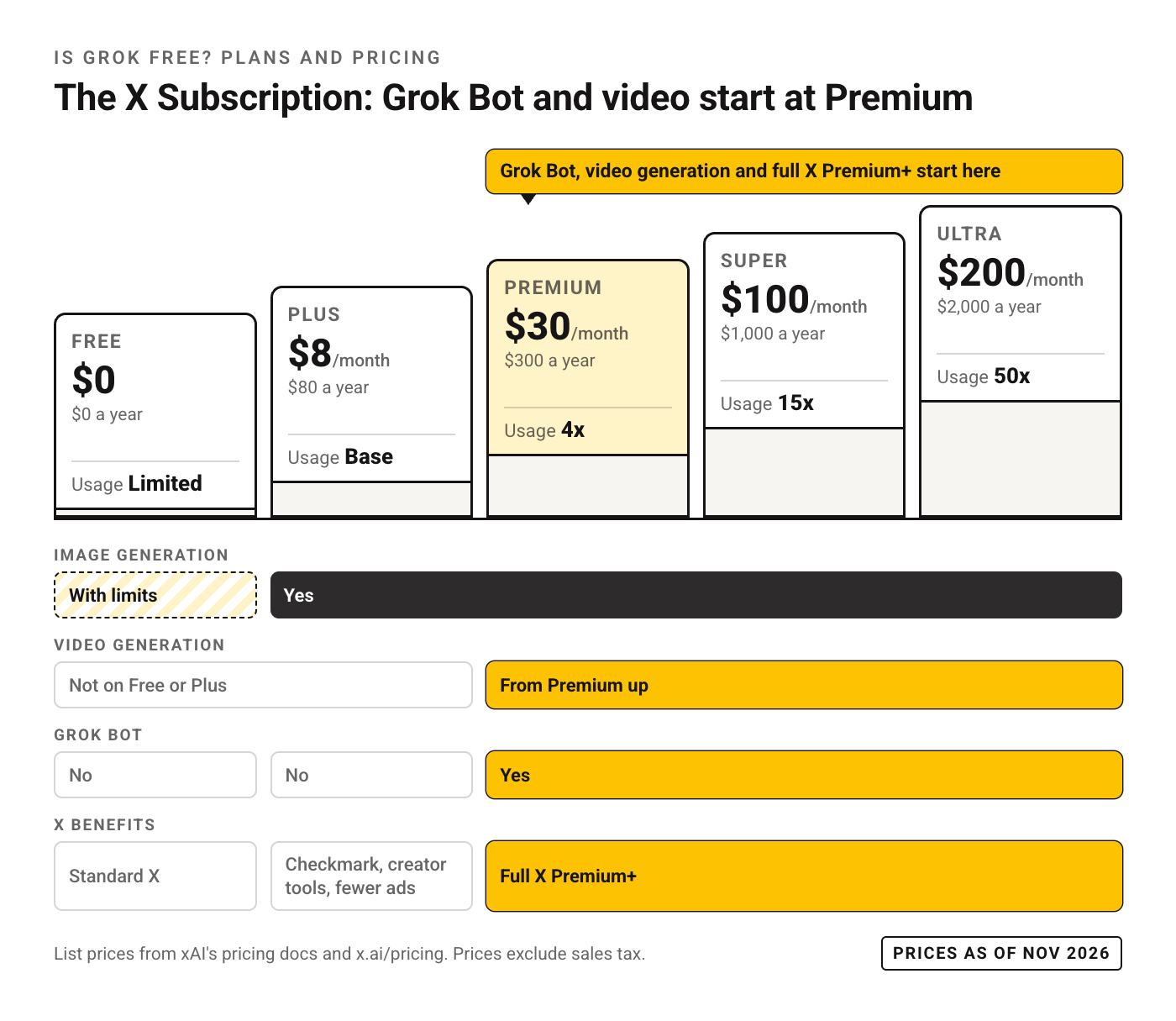
Prices exclude sales tax. How the usage works:
- One weekly pool. Paid usage comes from a single weekly allowance shared across Grok products. A chat message uses little of it, while video and long coding tasks use far more.
- Hitting the limit. Paid features pause until the weekly reset, but free-tier Chat and Voice keep working. You can also buy Extra Usage Credits from $5, currently on the web only.
- Older plans. SuperGrok and X Premium subscriptions continue, and switching is optional. Once you switch to The X Subscription, though, you can't undo it.
xAI points to x.ai/pricing for the latest numbers, so glance at it before you pay.
Grok Bot: The Agent Version of Grok
Grok Bot is a separate product from the Grok chat assistant. In xAI's description, each Bot is an AI teammate that works on a persistent cloud computer with a browser, a filesystem and a terminal, so tasks finish inside your real tools.
- Platforms: desktop apps for macOS, Windows and Linux, plus iPhone and Android.
- Plans: included from Premium up on The X Subscription (Premium, Super, Ultra). Plus doesn't include it.
- Rules: you write a Bot's rules in plain language under Settings > General > Agent, and a separate review agent checks proposed actions before they run (Grok Bot 101).
- From X: tag @bot in a post and your main Bot takes the post as a task. Your X account has to be connected to Grok, and tagging isn't available yet for accounts based in Australia, the UK, the EU, Iceland, Liechtenstein or Norway.
One thing to know before you hand it any logins: all your Bots share one cloud computer, so a site you sign into for one Bot is open to the others too.
Grok vs. ChatGPT: Which One is Better?
Neither one wins everywhere. The better choice depends on where your questions start.
What tilts toward Grok:
- It can search public X posts in real time, which matters when a story is breaking on X.
- Image and video creation (Imagine) sit in the same app as chat.
- If you already pay for X, the Premium tier and up include full X Premium+ benefits.
What tilts toward ChatGPT:
- If your prompts, custom instructions and team workflows already live there, switching means rebuilding that setup.
Which one should you use? If X is where your questions begin, try Grok first. If your daily work already runs on ChatGPT, keep it there and use Grok for whatever is happening on X right now.
Using Grok AI for Writing and Content Creation
Grok isn’t just for chatting—it’s a solid tool for writing and content creation.
Whether you need tweets, blog ideas, or ad copy, Grok can help.
How to Use Grok for Writing:
• Tweets & Social Media Posts – “Write a tweet about [your topic] that will get engagement.”
• Blog Post Ideas – “Give me 5 blog post ideas about [your niche].”
• Product Descriptions – “Write a persuasive product description for [your product].”
• Ad Copy – “Create a short, catchy ad for [your service].”
• Email Writing – “Write a friendly but professional email about [your topic].”
Pro Tips for Better Results:
• Be specific about tone (funny, serious, persuasive).
• Add details about your audience (e.g., “Make it relatable for freelancers”).
• If the response isn’t right, ask Grok to rewrite it in a different style.
Whether you’re posting on social media, writing emails, or brainstorming content ideas, Grok makes it fast and easy.
How to Use Grok for Coding and Tech Support
Grok can help with coding, debugging, and explaining tech concepts in simple terms.
Even if you’re a beginner or a pro, it can speed up your workflow.
How to Use Grok for Coding:
• Fix errors – “This Python code isn’t working. Find the mistake: [paste code].”
• Generate scripts – “Write a simple [JavaScript/Python] script that does [specific task].”

• Explain concepts – “What does this error mean? [paste error message].”
• Optimize code – “Make this code more efficient: [paste code].”
• Learn new languages – “What’s the difference between Python and JavaScript?”
Limitations:
• Grok is great for basic coding help, but it’s not perfect for complex programming tasks.
• Always double-check AI-generated code before using it in real projects.
If you need quick solutions, debugging help, or coding explanations, Grok is a great tool.
How to Use Grok for Learning & Research
Grok can summarize, explain, and break down complex topics in a way that’s easy to understand.
Even if you’re studying, fact-checking, or just curious, here’s how to use it.
How to Use Grok for Learning:
• Summarize articles & books – “Summarize this article: [paste link or text].”
• Explain difficult topics – “Explain [quantum physics/blockchain] like I’m 10.”
• Compare concepts – “What’s the difference between [two topics]?”
• Find key takeaways – “Give me the 3 biggest lessons from [a book/topic].”
• Translate or simplify text – “Rewrite this in simple words: [paste text].”
Best Uses:
• Students – Quick explanations, research summaries, study guides.
• Professionals – Industry insights, report summaries, business trends.
• Casual learners – Fun facts, history, science, or anything you’re curious about.
Grok makes learning easier and faster—just ask, and it delivers.
Grok’s Real-Time Internet Access: What It Means for Users
Grok can decide on its own to search public posts on X and the web in real time, so it can give you up-to-date answers instead of relying only on past training.
What This Means for You:
• Fresher news & trends – Get real-time updates on tech, business, sports, and more.
• Better fact-checking – Ask Grok to verify information and compare sources.
• More relevant answers – Since it browses the web, its responses stay current.
Limitations:
• Real-time data doesn’t guarantee accuracy—always cross-check important info.
• Some topics may have conflicting or biased sources, so use critical thinking.
If you need the latest updates instead of outdated AI responses, Grok is one of the best options.
Limitations of Grok AI (What It Can’t Do)
Grok is powerful, but it’s not perfect.
Here are some things it struggles with or can’t do yet.
What Grok Can’t Do:
• Long, detailed content – It’s great for quick answers but not for deep research or long-form writing.
• 100% accuracy – Even with real-time access, it can still get things wrong. Always fact-check.
• Complex coding solutions – It can help debug and write small scripts but isn’t reliable for advanced programming.
• Emotional intelligence – It has personality, but it doesn’t truly “understand” emotions.
• Work offline: you need a connection to X, grok.com or the Grok app.
Grok is fun, fast, and useful, but it’s not a replacement for deep research or human expertise.
Privacy: How to Stop Grok From Training on Your Data
X may share your public posts, plus your Grok chats on X, with xAI to train its models. X's help page gives the opt-out path:
- In X, open Settings, then Privacy & Safety.
- Go to Data sharing and personalization, then Grok & Third-party Collaborators.
- Under Data Sharing, untick the box that allows your public data and Grok interactions to be used for training and fine-tuning.
You can keep using Grok after you opt out. Two caveats from the same page: thumbs-up and thumbs-down feedback can still be used for training, and protecting your posts (making your account private) also keeps them out of training.
Want your history gone too? Use Settings > Privacy & Safety > Data sharing and personalization > Grok > Delete Conversation History. X says deleted chats leave its systems within 30 days unless it has to keep them for security or legal reasons.
Pro Tips for Using Grok Like a Pro
Want better answers, faster responses, and more useful insights?
Here’s how to get the most out of Grok.
1. Be Specific with Your Prompts
• Instead of “Tell me about AI,” try “Explain how AI is used in marketing today.”
• Instead of “Write me a tweet,” try “Write a funny tweet about Mondays with a tech twist.”
2. Use Follow-Ups to Refine Answers
• If the first response isn’t perfect, ask for a rewrite or more details.
• Example: “Make it shorter.” “Now, make it sound sarcastic.”
- Ask for the Tone You Want
• Add "keep it neutral and factual" when you're researching.
• Add "make it funny and a little sarcastic" for social posts.
4. Ask for Multiple Options
• “Give me 5 tweet ideas about [topic].”
• “List 3 ways to improve my [business, study habits, workout].”
5. Don’t Assume It’s Always Right
• Grok is fast and witty, but not always accurate.
• Always fact-check important information.
With the right approach, Grok can be a powerful tool for work, creativity, and learning.
Should You Start Using Grok?
If you spend time on X, yes. It costs nothing to try, and the Grok icon is already in your app.
Start on the free plan and watch whether you hit the limits. Image generation is on every plan, with limits on Free. If video is the reason you're here, budget for Premium or higher: xAI's plan comparison lists video generation from Premium up, not on Free or Plus.
Grok FAQ
Is Grok free to use now?
Yes, with limits xAI doesn't put a number on. The Free plan's included usage is simply listed as "Limited".
How do I use Grok for free?
Open Grok on X, at grok.com or in the Grok app and stay within the free allowance. Save the heavy jobs (video, long coding tasks) for when you need them, because xAI says those draw far more compute than a chat message.
What images can you make with Grok?
Grok Imagine creates both images and video. Every result carries a Grok watermark that you can't turn off, and xAI's Acceptable Use Policy forbids removing it. For prompt ideas to start from, browse the Grok templates in our library.
Why did my Grok video come out at 480p instead of 720p?
Your plan has a 720p cap. Once you hit it, xAI's FAQ says new 720p videos automatically fall back to 480p.
Where are Grok Companions available?
Only in the iOS app, and xAI says it has no plans to change that.
Next step: turn this article into output with ChatGPT prompts, or go deeper with Claude prompts.
Once the basics work, move to the best Grok 3 prompts for deep research.
Prompts for this topic
Put this article to work with ready-to-use prompts from the God of Prompt library.
Keep reading

Claude for Beginners: The 2026 Guide (Free Courses Included)
What Claude is, what it costs, which model to pick, and the 4D framework from Anthropic's free AI Fluency course. A plain-language starting point for anyone new to Claude.


Is ChatGPT 5 Really The Best AI Model (Claude, Gemini, Grok Comparison)
Explore how ChatGPT-5 stacks up against Claude 4, Google’s Gemini 2.5, and Elon Musk’s Grok in coding, reasoning, multimodal tasks, and real-time data. Who truly leads the AI race?


How To Create PDFs with Grok (Easy Guide + Prompts)
Want to turn text into a clean PDF with one prompt? Learn how to use Grok’s new PDF export feature, plus get prompts and use cases in this quick-start guide.

The best of the blog, in your inbox
One email when notable prompts, tools, and model updates land. No spam, unsubscribe anytime.
Join 100,000+ subscribers. One email a week, real prompts, tools, and model updates. Unsubscribe anytime.