Introducing ChatGPT Atlas: Everything You Need To Know
Discover ChatGPT Atlas — OpenAI’s newest innovation redefining how we interact with AI. Learn what ChatGPT Atlas is, its key features, capabilities, release details, and how it transforms productivity, creativity, and communication. Get the full breakdown in this complete guide!


On this page
- What Is ChatGPT Atlas?
- Why OpenAI Built a Browser
- Key Features That Change Everything
- 1. The “Ask ChatGPT” Sidebar
- 2. Browser Memories (Optional)
- Privacy Controls You’ll Actually Use:
- 3. Agent Mode: ChatGPT Does Tasks For You
- Agent Mode Availability:
- 4. Personalized Homepage
- 5. Standard Browser Features (All There)
- 6. Multiple Search Result Types
- How Atlas Compares to Other Browsers
- ChatGPT Atlas vs Chrome
- ChatGPT Atlas vs Perplexity Comet
- ChatGPT Atlas vs Safari/Edge
- Who Should Use ChatGPT Atlas?
- Perfect For:
- Maybe Not For You If:
- Getting Started with Atlas (Step-by-Step)
- Step 1: Download Atlas
- Step 2: Sign In
- Step 3: Import Your Data
- Step 4: Set Your Preferences
- Step 5: Start Browsing
- Practical Use Cases That Work Today
- For Students:
- For Professionals:
- For Everyone:
- Safety & Privacy: What You Need to Know
- What Agent Mode CANNOT Do:
- What You Should Know:
- Best Practices:
- Parental Controls
- What’s Coming Next
- Coming Soon:
- Future Vision:
- Pricing: What’s Free, What’s Not
- Free Users Get:
- Plus Users ($20/month) Get:
- Pro Users ($200/month) Get:
- Special Promotion:
- What’s Amazing:
- What Needs Improvement:
- The Bottom Line:
- Should You Switch to Atlas?
- Final Thoughts: The Future of Browsing
OpenAI just dropped something huge. On October 21, 2025, they launched ChatGPT Atlas – their first web browser.
This isn’t just another browser with AI features slapped on.
This is ChatGPT built into how you browse the web, and it’s changing everything about how we use the internet.
I’ve been following AI browsers closely, and Atlas is different.
Really different. Let me show you exactly what it is, how it works, and why you should care.
ALSO READ: The Art of Prompting: How to Get Better Results from Logo Generator AI
What Is ChatGPT Atlas?
ChatGPT Atlas is OpenAI’s answer to Chrome, Safari, and other AI browsers like Perplexity’s Comet.
But instead of adding AI to an existing browser, OpenAI built the browser around ChatGPT from day one.
Here’s what makes it special:
- ChatGPT follows you on every page you visit
- It sees what you’re looking at and helps instantly
- No more copying and pasting between tabs
- It remembers your browsing to help you better
- It can do tasks for you automatically (agent mode)
- Available for FREE to everyone
Launched: October 21, 2025
Available: macOS now, Windows/iOS/Android coming soon
Cost: Free for everyone, premium features for Plus/Pro users
CEO Sam Altman said it best: “We think AI represents a rare once-in-a-decade opportunity to rethink what a browser can be about and how to use one.”
Why OpenAI Built a Browser
Think about how you use the internet.
You probably have ChatGPT open in one tab, your research in another, maybe some shopping sites, work documents, and more.
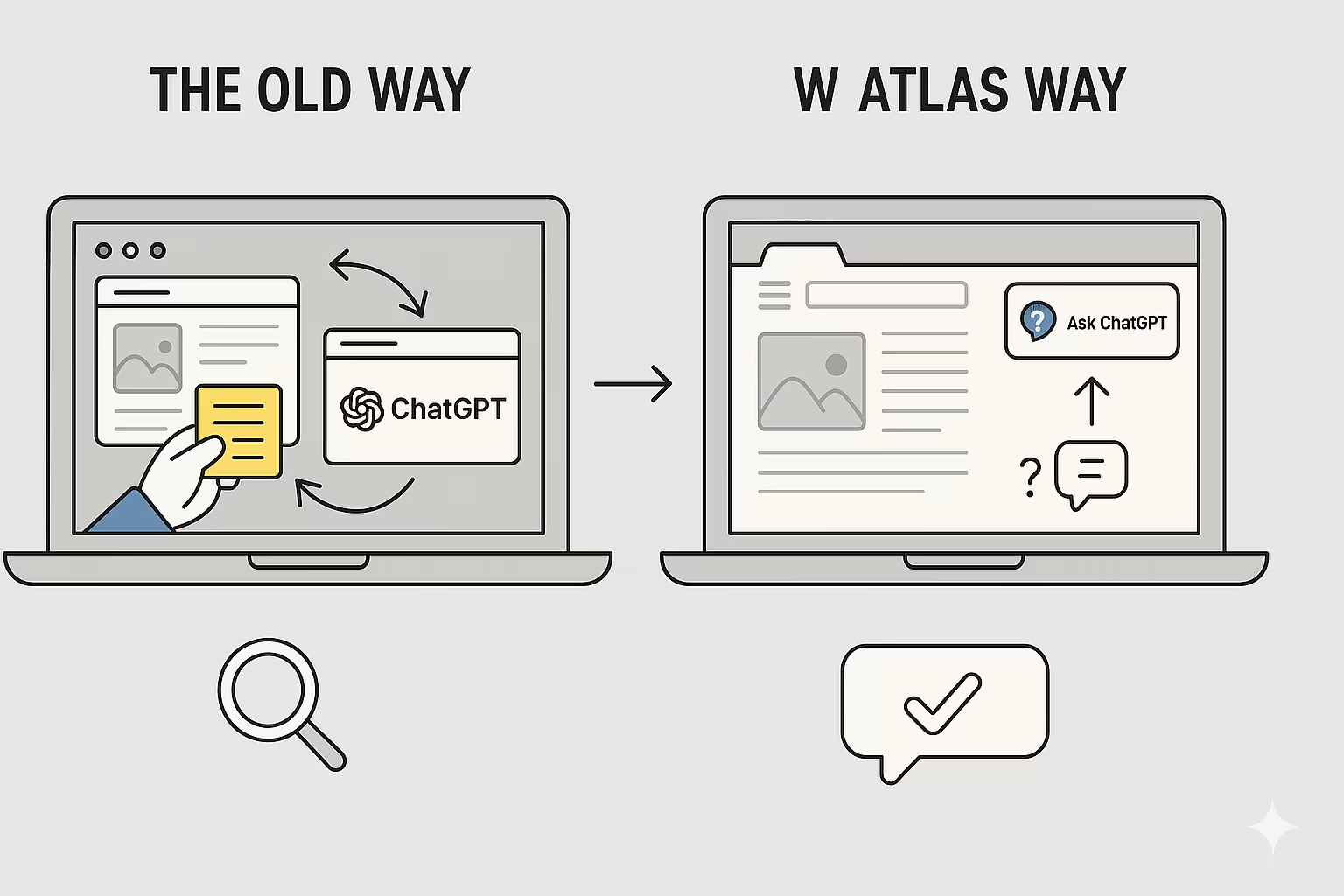
You’re constantly switching tabs, copying text, pasting into ChatGPT, then going back.
That’s exactly the problem Atlas solves.
The old way:
- Find information on a website
- Copy it
- Switch to ChatGPT tab
- Paste it
- Ask your question
- Copy the answer
- Go back to your original tab
The Atlas way:
- Click “Ask ChatGPT” on any page
- Ask your question
- Get instant help without leaving
Your browser is where your work, tools, and context come together. Atlas makes ChatGPT part of that flow instead of making you jump between tools.
Key Features That Change Everything
1. The “Ask ChatGPT” Sidebar
This is the killer feature. On every single webpage you visit, there’s an “Ask ChatGPT” button. Click it and a sidebar appears.
What you can do:
- Summarize long articles
- Ask questions about the page content
- Compare products across tabs
- Check code for errors
- Get help writing emails or documents
- Research topics deeper
- Extract specific information
Real example: You’re reading a recipe. Click “Ask ChatGPT” and say “Add all these ingredients to my Instacart cart and order them.” Done.
The sidebar stays open while you browse, becoming your constant companion. It’s like having a genius friend who’s always there to help.
2. Browser Memories (Optional)
Atlas can remember what you browse. This isn’t creepy tracking – it’s helpful context that makes ChatGPT smarter over time.
What it remembers:
- Pages you’ve visited
- Products you’ve looked at
- Topics you’ve researched
- Documents you’ve read
- Your browsing patterns
How this helps:
You ask: “Find all the job postings I was looking at last week and create a summary of industry trends”
ChatGPT: Uses browser memories to find those exact postings and creates your summary
You ask: “Re-open those shoes I looked at yesterday”
ChatGPT: Knows exactly which page and opens it
Privacy Controls You’ll Actually Use:
- Browser memories are completely optional (off by default for many users)
- View all memories anytime in settings
- Archive memories you don’t want
- Delete browsing history to delete all memories
- Use incognito mode – nothing saved or remembered
- Toggle visibility per site – control what ChatGPT can see
- By default, OpenAI does NOT use your browsing to train models
You’re in complete control. If you don’t want memories, turn them off. If you want them for some sites but not others, that’s fine too.
3. Agent Mode: ChatGPT Does Tasks For You
This is where things get wild. Agent mode lets ChatGPT actually DO things in your browser for you.
What agent mode can do:
Shopping & Ordering:
- Add items to carts
- Order groceries
- Buy products
- Compare prices across sites
Work Tasks:
- Edit documents
- Fill out forms
- Compile research
- Create reports from web data
Planning:
- Book restaurant reservations
- Schedule appointments
- Plan trips
- Find and compare options
Example workflow:
You’re planning dinner. Tell ChatGPT:
“I want to make pasta carbonara tonight. Find a recipe, add all ingredients to Instacart, and order them for delivery at 5 PM.”
ChatGPT will:
- Find a good recipe
- Extract all ingredients
- Open Instacart
- Add each item to cart
- Set delivery time
- Complete the order (with your approval)
You just saved 20 minutes of work.
Agent Mode Availability:
- Plus users: Access in preview
- Pro users: Access in preview
- Business users: Access in preview
- Free users: Not available yet
Important: Agent mode is still in preview. It works great for simple tasks but can make mistakes on complex workflows. OpenAI is rapidly improving it.
4. Personalized Homepage
The new tab page in Atlas isn’t just a search bar. It’s ChatGPT ready to help.
What you see:
- Suggested prompts based on your history
- Quick actions for common tasks
- Recent browsing you might want to continue
- Topics related to your interests
Example suggestions:
- “Continue researching holiday gifts”
- “Summarize that long article you saved”
- “Find more products like the shoes you viewed”
- “Pick up where you left off on your project”
The more you use Atlas, the better these suggestions become.
5. Standard Browser Features (All There)
Atlas isn’t missing anything you expect from a browser:
- Tabs – Open multiple pages
- Bookmarks – Save your favorite sites
- History – Track where you’ve been
- Passwords – Save and autofill
- Incognito mode – Private browsing
- Import from other browsers – Move everything in one click
When you first open Atlas, it asks to import from Chrome or Safari. One click and all your bookmarks, passwords, and history transfer over.
6. Multiple Search Result Types
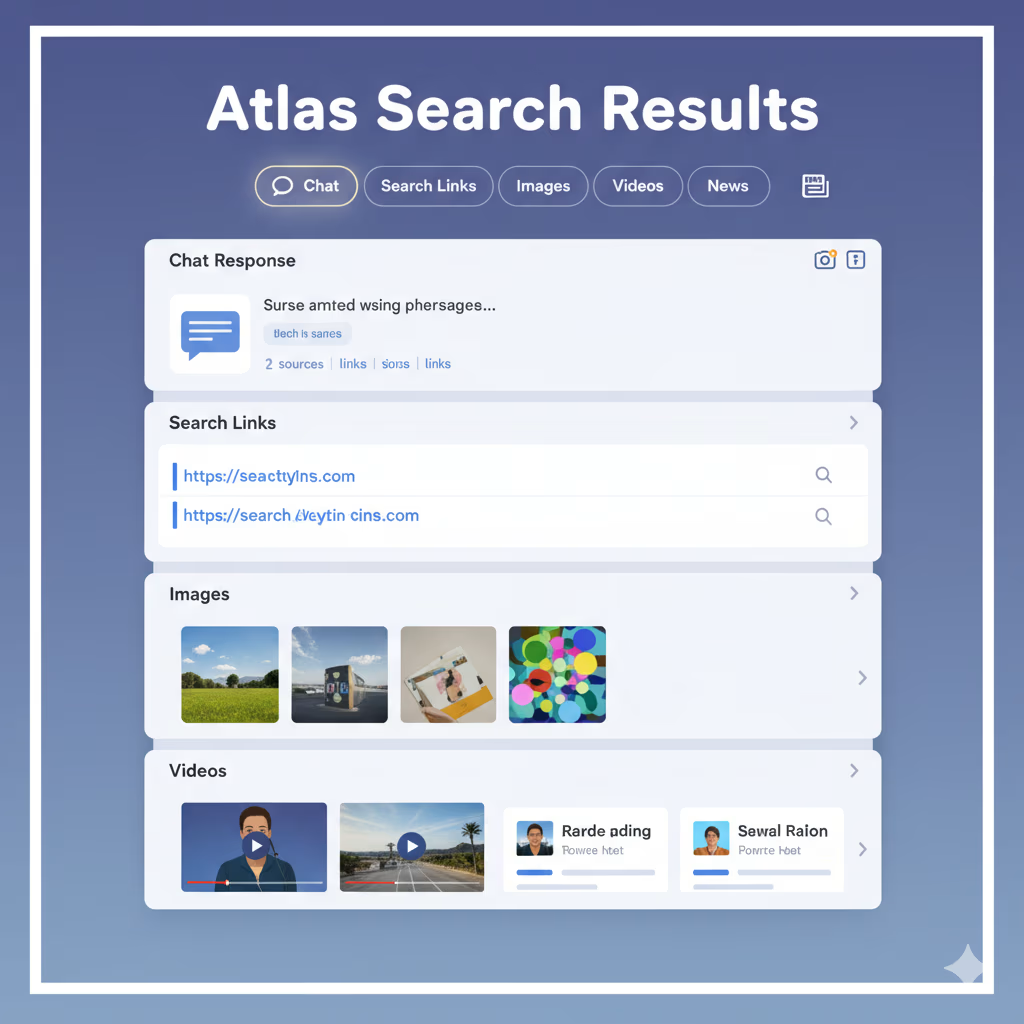
When you search in Atlas, you don’t just get ChatGPT’s answer. You get:
- Chat response (ChatGPT’s answer with sources)
- Search links (traditional Google-style results)
- Images (visual results)
- Videos (YouTube and video content)
- News (current news articles)
You can switch between these views with tabs at the top. Want the AI answer? Use chat. Want traditional links? Click search links.
How Atlas Compares to Other Browsers
ChatGPT Atlas vs Chrome
Chrome:
- Most popular browser (66% market share)
- Adding AI features with Gemini
- Lots of extensions
- Google search integration
Atlas:
- ChatGPT integrated throughout
- AI understands your browsing context
- Agent mode does tasks for you
- Newer, fewer extensions (for now)
The difference: Chrome added AI to an existing browser. Atlas built the browser around AI from the start.
ChatGPT Atlas vs Perplexity Comet
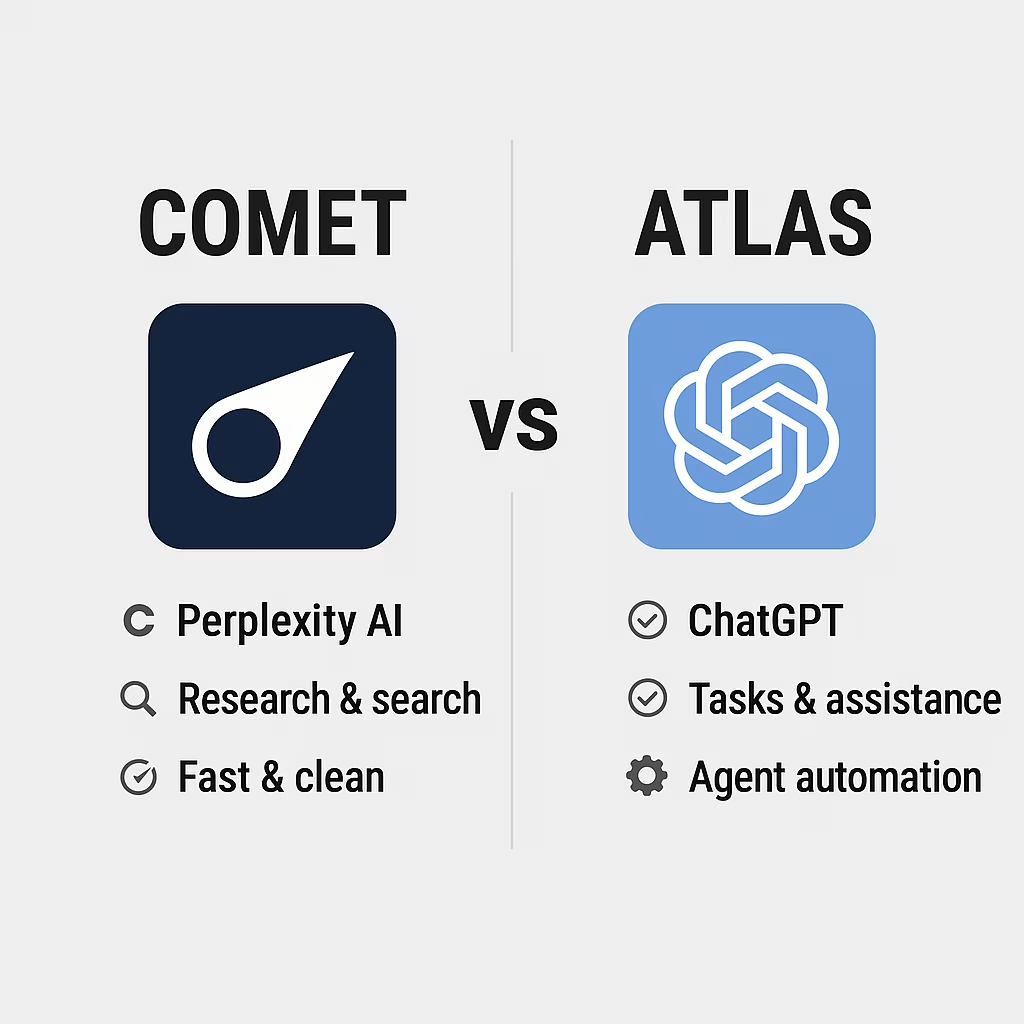
Comet:
- Launched July 2025, free in October 2025
- Perplexity AI integration
- Focus on research and search
- Fast and clean
Atlas:
- Launched October 2025
- ChatGPT integration
- Focus on tasks and assistance
- Agent mode for automation
The difference: Comet is amazing for research. Atlas is built for doing things. Different strengths for different needs.
ChatGPT Atlas vs Safari/Edge
Safari and Edge are traditional browsers adding AI features. Atlas is AI with browser features. It’s a fundamentally different approach.
Which should you use? Try Atlas for a week. If it fits your workflow, keep it. If not, you lost nothing. Many people will use multiple browsers for different tasks.
Who Should Use ChatGPT Atlas?
Perfect For:
Students:
- Take notes while reading
- Ask questions about course materials
- Research papers faster
- Get help understanding complex topics
Professionals:
- Edit documents without switching apps
- Research faster
- Automate repetitive web tasks
- Stay organized across projects
Content Creators:
- Research topics quickly
- Compare information across sources
- Get writing help inline
- Save time on admin tasks
Anyone Who:
- Uses ChatGPT regularly
- Hates switching between tabs
- Wants browsing to be smarter
- Likes trying new tech
Maybe Not For You If:
- You barely use AI tools
- You’re happy with your current browser
- You don’t want to change habits
- You need specific Chrome extensions Atlas doesn’t support yet
Getting Started with Atlas (Step-by-Step)
Step 1: Download Atlas
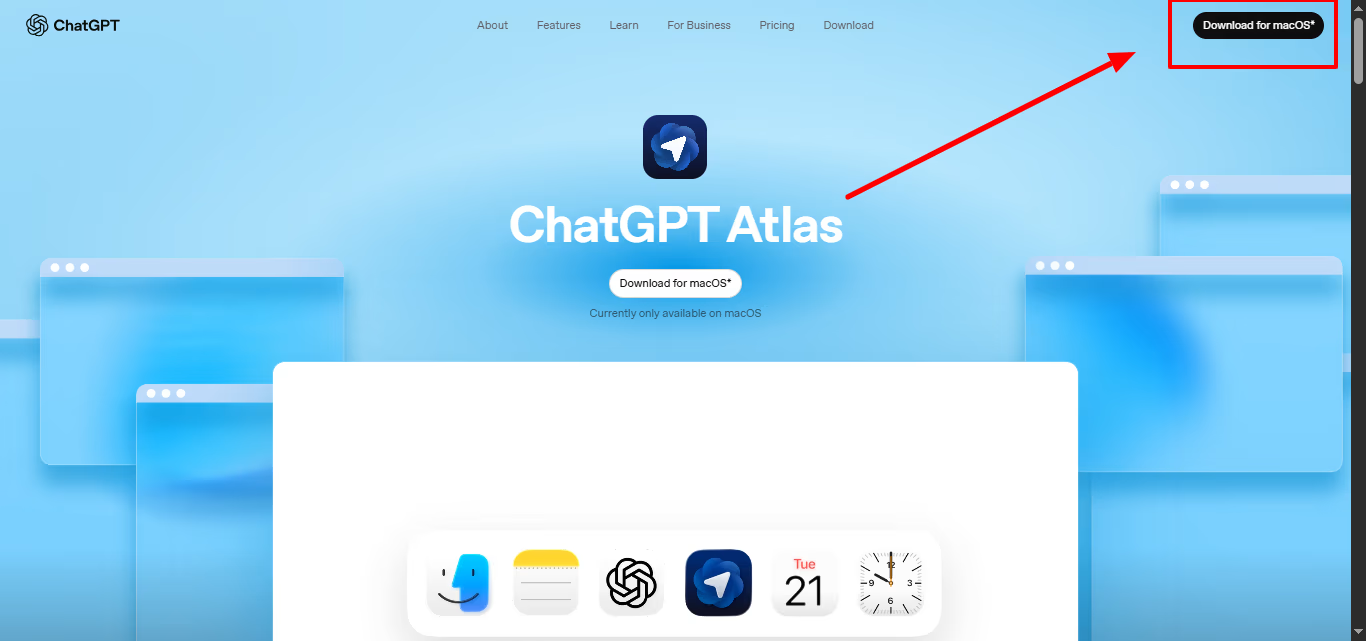
- Go to chatgpt.com/atlas
- Click “Download for macOS”
- Install like any Mac app
- Open Atlas
Windows/iOS/Android users: Coming soon. Sign up for notifications.
Step 2: Sign In
- Sign in with your ChatGPT account
- Choose Free or use your Plus/Pro account
- Atlas loads your ChatGPT settings and memory
Step 3: Import Your Data
- Atlas asks which browser to import from
- Select Chrome, Safari, or other browser
- Choose what to import:
- Bookmarks
- Passwords
- Browsing history
- Click import – done in seconds
Step 4: Set Your Preferences
- Browser memories: Turn on or off
- Data training: Choose if OpenAI can use your data (off by default)
- Agent mode: Enable if you’re Plus/Pro
- Parental controls: Set up if needed
Step 5: Start Browsing
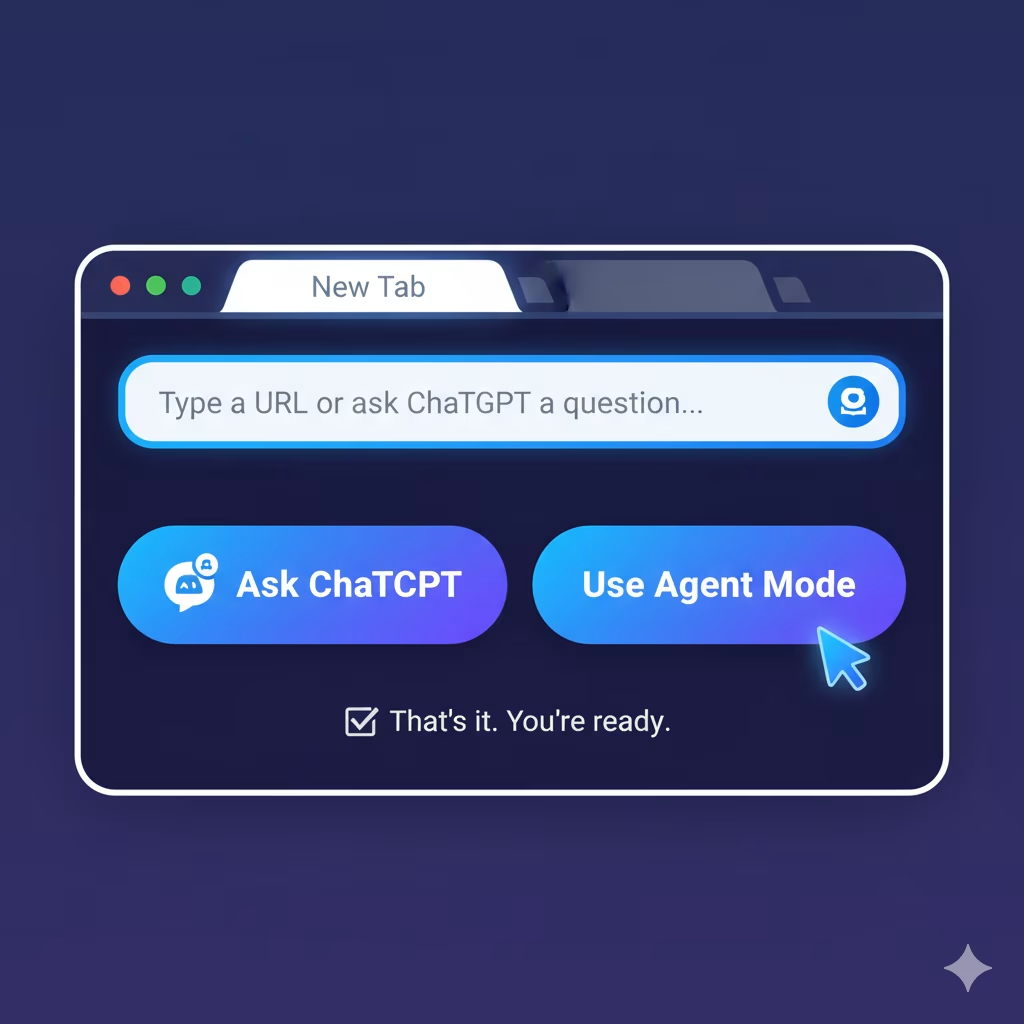
- Open a new tab
- Type a URL or ask ChatGPT a question
- Click “Ask ChatGPT” on any page to get help
- Use agent mode for tasks
That’s it. You’re ready.
Practical Use Cases That Work Today
For Students:
During Lectures:
- Take screenshots of slides
- Ask ChatGPT to create practice questions
- Get real-world examples explained
- Build study guides automatically
Research Papers:
- Summarize academic articles
- Compare multiple sources
- Extract citations
- Check your writing
For Professionals:
Email Management:
- Draft professional emails
- Polish rough messages
- Respond to multiple emails faster
- Schedule follow-ups
Research & Analysis:
- Gather competitive intelligence
- Compile market research
- Create reports from web data
- Track industry trends
For Everyone:
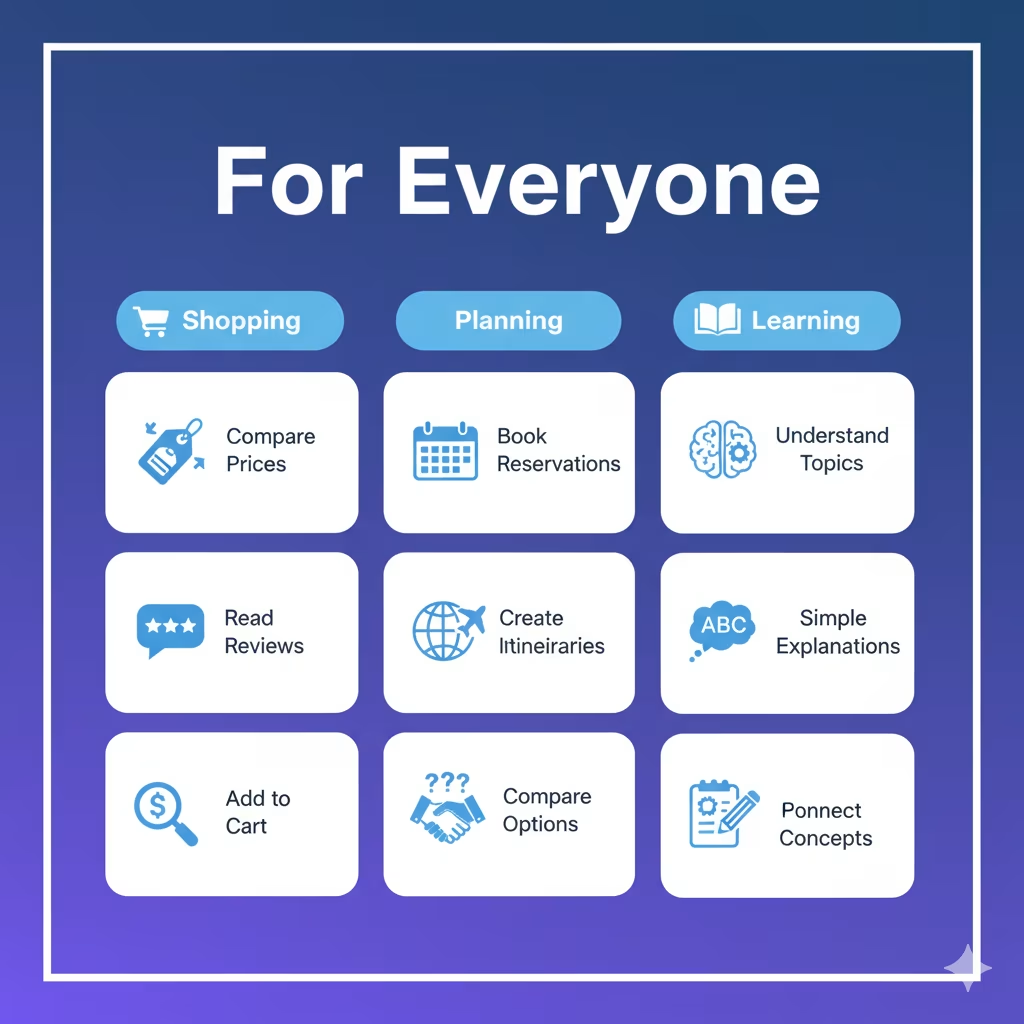
Shopping:
- Compare prices across sites
- Read reviews and summaries
- Add items to carts automatically
- Find better deals
Planning:
- Book reservations
- Plan trips
- Create itineraries
- Find and compare options
Learning:
- Understand complex topics
- Get explanations in simple terms
- Practice with examples
- Connect concepts
Safety & Privacy: What You Need to Know
OpenAI takes safety seriously, but they’re honest about limitations:
What Agent Mode CANNOT Do:
- Run code in your browser
- Download files without permission
- Install extensions
- Access other apps on your computer
- Access your file system
- Take actions without you watching
What You Should Know:
Agent mode can make mistakes. It’s in preview and learning. Double-check important tasks.
Hidden malicious instructions exist. Bad actors can hide instructions in web pages that try to trick the agent.
OpenAI has safeguards but they won’t catch everything.
You’re always in control. You can stop agent mode anytime. It pauses on sensitive sites like banks.
Best Practices:
- Watch what agent mode does – Don’t walk away
- Use logged-out mode for sensitive tasks – Reduces risk
- Don’t share sensitive information with agent mode – Bank passwords, SSN, etc.
- Start with simple tasks – Learn how it works before complex ones
- Check the results – Verify important actions
OpenAI is constantly improving safety. Report any issues you find.
Parental Controls
If you have kids using ChatGPT, parental controls work in Atlas too:
- Same settings from ChatGPT carry over
- Option to turn off browser memories
- Option to turn off agent mode
- Control what content ChatGPT can access
Parents stay in control of how their kids use Atlas.
What’s Coming Next
OpenAI has a roadmap for Atlas:
Coming Soon:
Multi-profile support – Share computer, keep browsing separate
Improved developer tools – Better for developers and tech users
App discoverability – Easier to find and use ChatGPT apps in Atlas
ARIA tags support – Better agent mode for websites that add them
Windows, iOS, Android – Platform launches
Future Vision:
OpenAI sees a future where “most web use happens through agentic systems.” That means AI agents handling routine tasks while you focus on what matters.
Atlas is the first step toward that future.
Pricing: What’s Free, What’s Not
Free Users Get:
- Full browser access
- “Ask ChatGPT” sidebar on all pages
- Search with ChatGPT
- Basic ChatGPT responses
- All standard browser features
- Import from other browsers
- Privacy controls
- No agent mode
- Limited ChatGPT capabilities
Plus Users ($20/month) Get:
- Everything Free gets
- Agent mode access (preview)
- GPT-4 model
- Faster responses
- Priority access during high traffic
- Advanced ChatGPT features
Pro Users ($200/month) Get:
- Everything Plus gets
- Unlimited agent mode usage
- Best AI models
- Highest priority access
- Advanced research capabilities
Special Promotion:
Set Atlas as your default browser and get increased ChatGPT data limits for 7 days – free and paid users!
What’s Amazing:
The sidebar is genuinely useful. I find myself using it constantly.
Reading an article? Summarize it. Shopping? Compare options.
Working? Get help writing. It just works.
Agent mode is mind-blowing when it works. Watching ChatGPT order my groceries was surreal.
It’s not perfect, but when it succeeds, you feel like you’re living in the future.
The interface is clean. It’s not overloaded with features. It’s just ChatGPT + browser. Simple.
What Needs Improvement:
Agent mode makes mistakes. It’s in preview for a reason. Don’t trust it with critical tasks yet.
Limited platform support. macOS only at launch is limiting. We need Windows/iOS/Android.
Missing some features. No extensions yet. Some advanced browser features missing.
Learning curve. You need to learn new habits. Takes a few days to adjust.
The Bottom Line:
Atlas is impressive for a v1 launch. It’s not perfect, but it’s showing us what browsing could be.
If you use ChatGPT regularly, you should try Atlas. It might just change how you work online.
Should You Switch to Atlas?
Here’s my honest recommendation:
Try it for a week. Download it, import your bookmarks, use it as your main browser for 7 days. See if having ChatGPT always available changes your workflow.
Keep your old browser installed. You might want Chrome or Safari for specific things. That’s fine.
Start simple. Don’t jump into agent mode on day one. Just browse and use the “Ask ChatGPT” sidebar. Let it prove its value.
Give it time. New habits take time. The first day feels weird. By day three, you’ll start seeing the value.
If after a week you love it, keep using it. If not, you lost nothing and learned something new.
Final Thoughts: The Future of Browsing
Here’s what excites me about Atlas: it’s not just another browser. It’s OpenAI’s vision for how we’ll use the internet in the future.
Right now, we navigate the web. We search, click, read, copy, paste. It’s active work.
With Atlas, the web becomes more conversational. You ask, ChatGPT helps.
You delegate tasks, agent mode handles them. You stay focused on what matters.
Will Atlas replace Chrome? Probably not tomorrow. Chrome has a massive lead.
Will AI browsers become the norm? Almost certainly. Once you experience having AI help you browse, going back feels slow.
Is Atlas perfect? No. But it’s a strong start.
OpenAI is moving fast. They launched ChatGPT, then search, then agent mode, now a full browser. Each step brings AI deeper into our daily workflows.
Atlas is the next step in that journey. It won’t be for everyone right away. But if you’re curious about where technology is headed, Atlas shows you the future.
Ready to try it? Download Atlas at chatgpt.com/atlas
The future of browsing is here. Welcome to Atlas.
Keep going: the prompt library has ChatGPT prompts and Claude prompts ready to copy and run.
Prompts for this topic
Put this article to work with ready-to-use prompts from the God of Prompt library.
Keep reading

Introducing ChatGPT 5.2: Everything You Need to Know
Discover everything about ChatGPT 5.2: faster reasoning, fewer hallucinations, better coding, and 70% accuracy vs industry professionals. Here’s what changed.


Introducing ChatGPT 5.1: Here’s Everything You Need to Know
ChatGPT 5.1 is here with warmer responses, better instruction following, and new personalization options. Learn what’s new and how to use the upgraded models now.

Introducing ChatGPT 5: Here’s Everything You Need To Know
ChatGPT-5 is here! Complete guide to accessing GPT-5, best prompts to try, new features, pricing, and how to use it effectively. Includes step-by-step tutorials and real examples.

The best of the blog, in your inbox
One email when notable prompts, tools, and model updates land. No spam, unsubscribe anytime.
Join 100,000+ subscribers. One email a week, real prompts, tools, and model updates. Unsubscribe anytime.