Ultimate Beginner’s Guide to Veo 3 (Tutorial)
Complete beginner’s guide to Google Veo 3. Learn setup, access methods, prompt creation, and advanced features. Step-by-step tutorial with examples and troubleshooting tips.


On this page
- What Is Veo 3 and Why It Matters
- Key Features:
- Who This Is For:
- How to Get Access (3 Methods)
- Creating Your First Video
- Advanced Prompt Example:
- Understanding Flow Interface
- Key Features
- Prompt Mastery Framework
- Copy-Paste Templates
- Advanced Techniques
- Troubleshooting Common Issues
- Real-World Examples
- Next Steps and Best Practices
- Quality Checklist
- Test with Veo 3 Fast first
- Conclusion
Google’s Veo 3 just changed everything. I’ve been testing AI video tools for years, and this is the first one that actually delivers on the Hollywood promises.
Videos with synchronized audio, realistic physics, and cinematic quality—all from text prompts.
But here’s the problem: most tutorials assume you already know what you’re doing.
This guide doesn’t. I’ll walk you from complete beginner to creating professional videos in under an hour.
ALSO READ: What ChatGPT Model Is Worth Using

What Is Veo 3 and Why It Matters
Veo 3 is Google DeepMind’s latest AI video generator, and it’s the first one that doesn’t suck.
While other tools give you silent, glitchy clips, Veo 3 creates videos with native audio, perfect lip-sync, and realistic physics. It’s like having a Hollywood film crew in your browser.
Key Features:
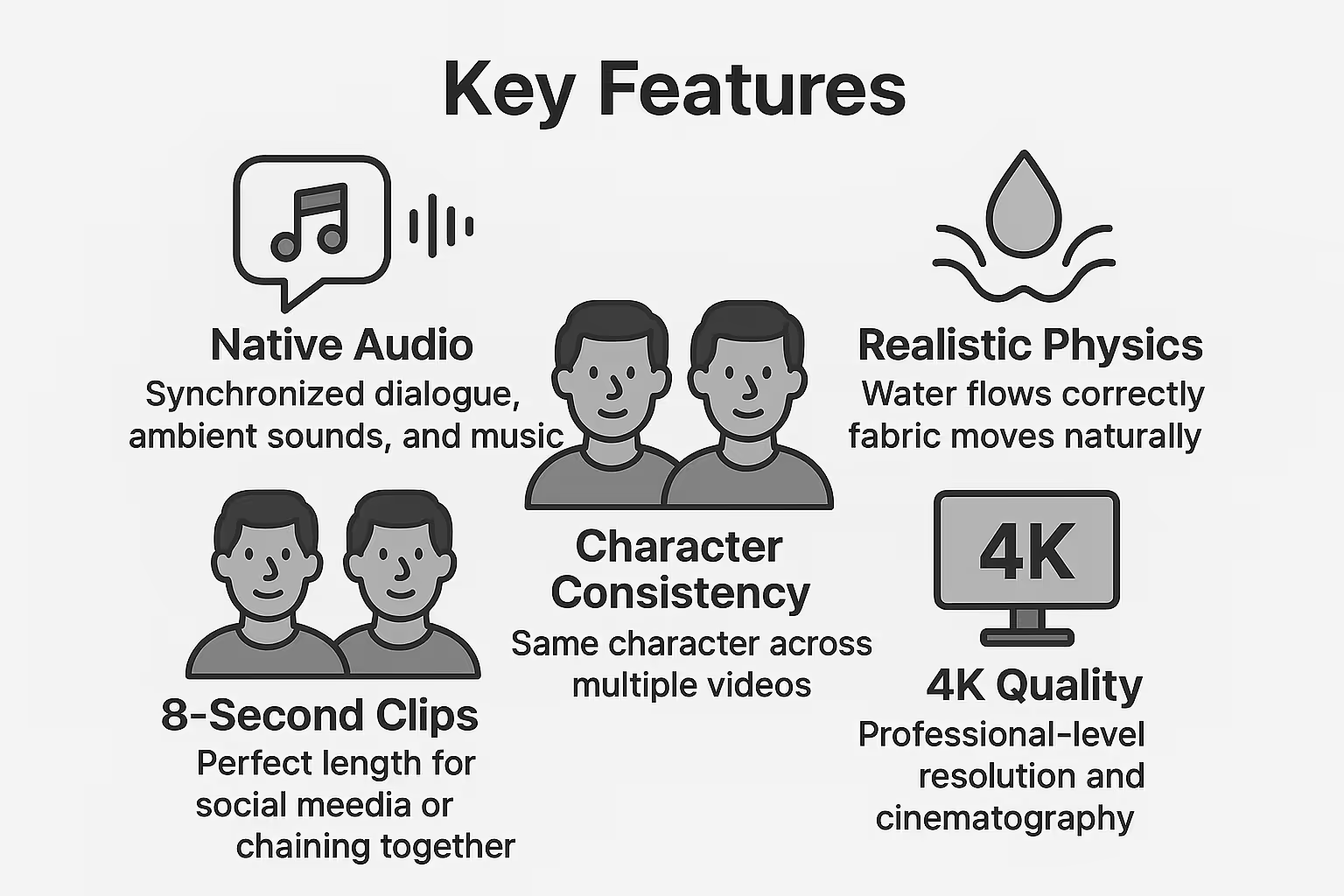
Native Audio: Synchronized dialogue, ambient sounds, and music
Realistic Physics: Water flows correctly, fabric moves naturally
Character Consistency: Same character across multiple videos
4K Quality: Professional-level resolution and cinematography
8-Second Clips: Perfect length for social media or chaining together
Who This Is For:
Content creators wanting professional quality
Marketers creating ads without agencies
Educators making engaging course content
Anyone curious about AI video creation
How to Get Access (3 Methods)
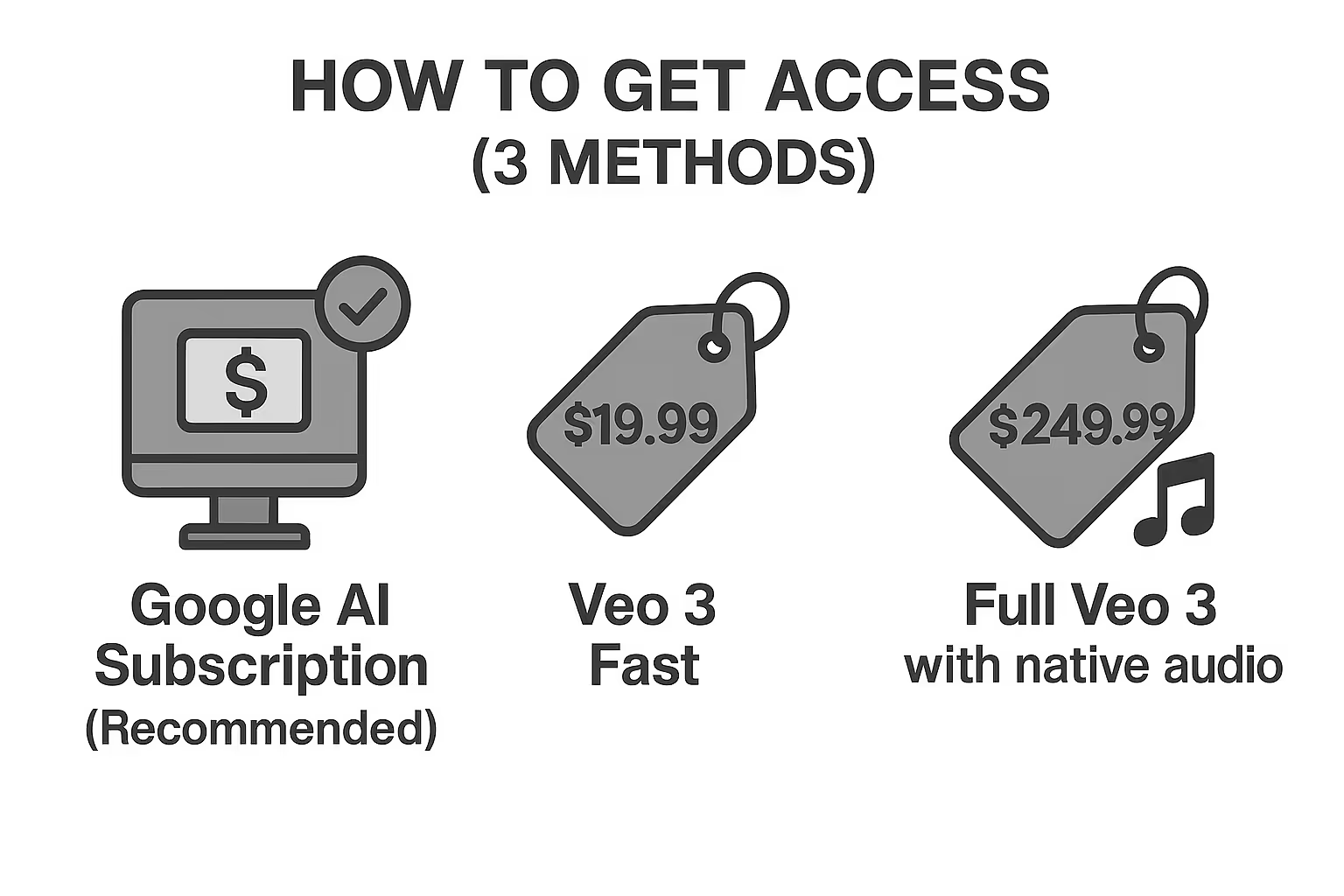
Method 1: Google AI Subscription (Recommended)
Google AI Pro: $19.99/month
1,000 credits monthly
Veo 3 Fast access
1-month free trial available
Google AI Ultra: $249.99/month
12,500 credits monthly
Full Veo 3 with native audio
Flow interface access
How to Sign Up
Visit one.google.com/ai
Choose your plan
Start with the free trial
Access via Gemini app or Flow
Method 2: Google Cloud Free Credits
Perfect for developers or technical users.
Create Google Cloud account
Get $300 in free credits (90-day limit)
Enable Vertex AI
Use API: veo-3.0-generate-preview
Credit Math: $300 = approximately 400 seconds of video content.
Method 3: Educational Access
For students and educators:
Valid .edu email required
Extended trial periods available
Check Google One education offers
Contact university IT departments
Note: Veo 3 is currently US-only. International users may need workarounds.
Creating Your First Video
Let’s make your first Veo 3 video using both simple and advanced methods.
Quick Start: Gemini App
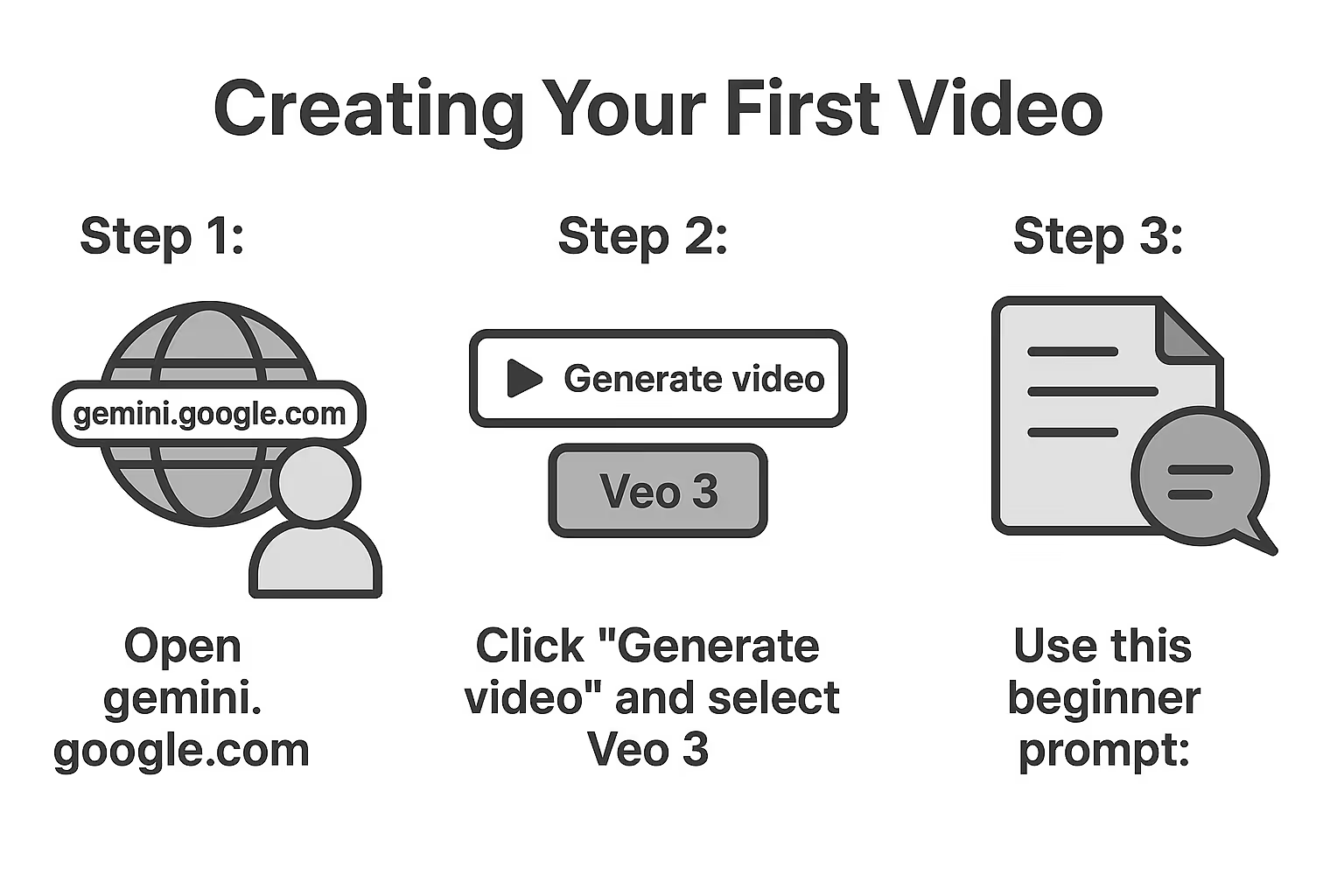
Step 1: Open gemini.google.com with your subscription account
Step 2: Click “Generate video” and select Veo 3
Step 3: Use this beginner prompt:
Medium shot of a professional woman in her 30s with brown hair, wearing a navy blazer, sitting in a modern office. She looks at the camera and says: “Welcome to our company. We’re excited to work with you.” Natural lighting from large windows. Professional, corporate atmosphere. No subtitles.
Step 4: Click generate and wait 2-3 minutes
Advanced Method: Flow Interface
Flow is Google’s dedicated filmmaking platform (Ultra subscription required).
Setup:
Go to deepmind.google → “Try in Flow”
Create new project
Choose aspect ratio (16:9 or 9:16)
Generation Modes:
Text-to-Video: Standard prompt creation
Frames-to-Video: Animate static images
Ingredients-to-Video: Combine saved elements
Advanced Prompt Example:
Cinematic close-up of a determined entrepreneur in her 40s with blonde hair, white button-down shirt, in a startup office with exposed brick walls. Golden hour lighting creates warm shadows. She looks at camera confidently and says: “The best time to start was yesterday. The second best time is now.” Background sounds of keyboards and office ambiance. Inspirational mood with shallow depth of field. No subtitles.
Understanding Flow Interface
Main Components
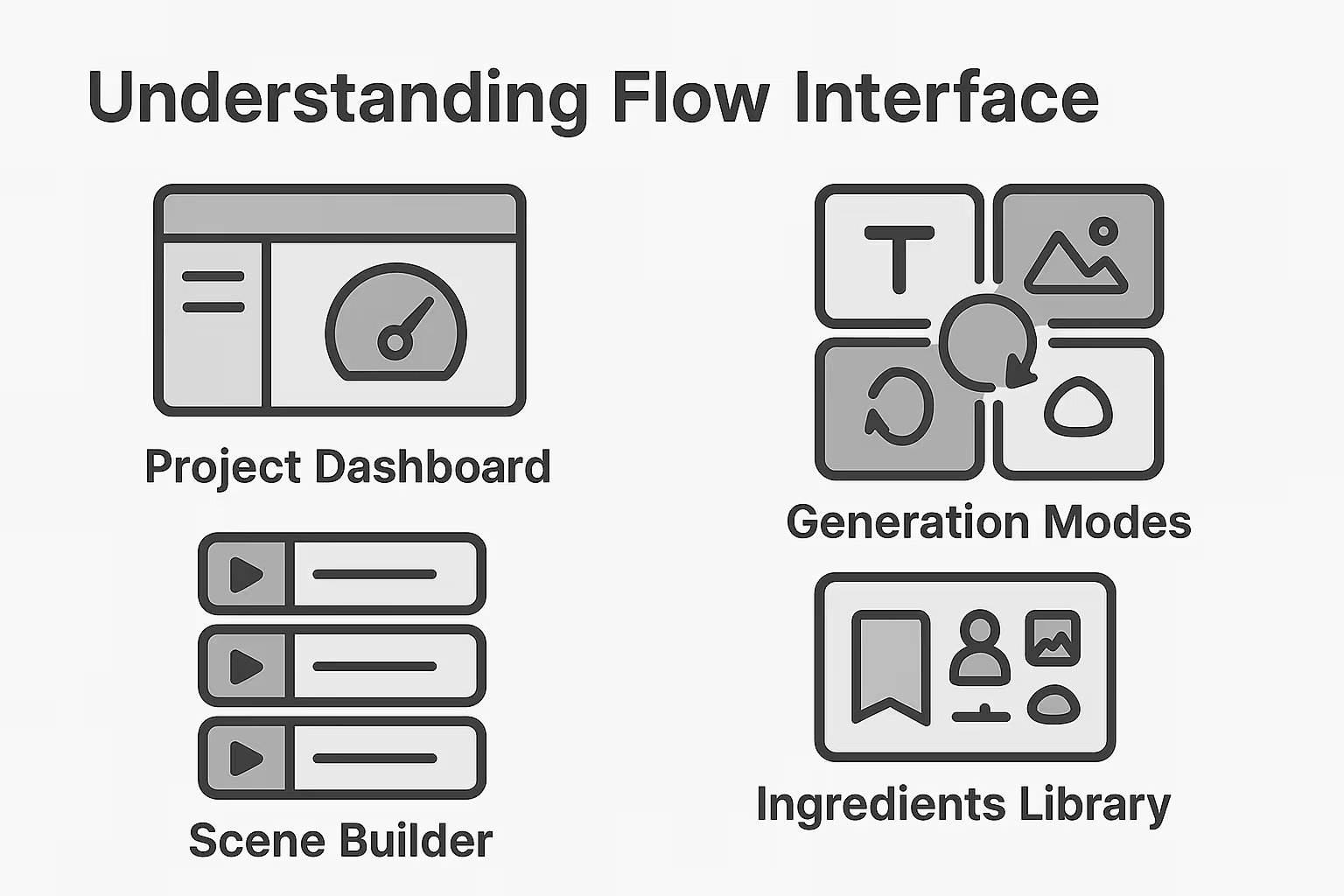
Project Dashboard: Manage all your video projects and track credit usage
Generation Modes: Switch between text-to-video, frames-to-video, and ingredients modes
Scene Builder: Chain multiple 8-second clips into longer sequences
Ingredients Library: Save and reuse characters, settings, and objects
Key Features
Camera Controls: Add dolly shots, tracking movements, and specific angles
Audio Integration: Native sound generation with dialogue, effects, and music
Character Consistency: Maintain same characters across multiple videos using saved descriptions
Prompt Mastery Framework
The 5-Element Structure
Every good prompt needs:
Camera Work: Shot type and movement
Subject: Detailed character description
Action: What’s happening
Setting: Environment and lighting
Audio: Dialogue and sounds
Copy-Paste Templates
Professional Talking Head:
Medium shot of [person description] in [setting]. [Lighting]. They say: “[dialogue].” [Background sounds]. [Style]. No subtitles.
Product Demo:
Close-up of [product] on [surface]. [Lighting]. [Action with product]. [Sound effects]. Commercial style. No subtitles.
Social Media:
Selfie-style video of [person] in [casual setting]. Natural lighting. They say: “[casual dialogue].” [Real sounds]. Authentic vlog style. No subtitles
Advanced Techniques
Character Consistency:
Save exact descriptions as “Ingredients”:
“Sarah, 35-year-old marketing director with curly red hair, black turtleneck, gold jewelry, confident expression”
Audio Control:
Exact words: “She says: [specific dialogue]”
Natural speech: “She enthusiastically explains the results”
Environment: “Coffee shop with espresso machine, conversations, jazz music”
Camera Movements:
Slow dolly-in” for intimacy
Tracking shot” for energy
Static wide shot” for authority
Troubleshooting Common Issues
Problem: Unwanted Subtitles
Solution: Always end prompts with “No subtitles” and use “She says:” format instead of quotation marks.
Problem: Inconsistent Characters
Solution: Save exact character descriptions as Ingredients and copy-paste identical details across prompts.
Problem: Poor Audio Sync
Solution: Keep dialogue under 20 words (8-second limit) and be specific about voice characteristics.
Problem: Low Quality Output
Solution: Use full Veo 3 instead of Fast version, add specific lighting descriptions, and include camera movement details.
Problem: Credits Running Out
Solution: Use Veo 3 Fast for testing (20 credits vs 100), perfect prompts before final generation, and plan monthly usage strategically.
Real-World Examples
Marketing Video
Medium shot of confident CEO in modern boardroom with city view. Natural daylight with professional interior lighting. She says: “This quarter’s results prove innovation pays off.” Subtle office ambiance. Corporate leadership style. No subtitles.
Educational Content
Close-up of instructor’s hands demonstrating knife techniques on wooden cutting board in bright kitchen. Overhead lighting eliminates shadows. Voice explains: “The rocking motion keeps fingers safe.” Knife sounds, kitchen ambiance. Clean instructional style. No subtitles.
Social Media
Handheld selfie of content creator in cluttered home studio with ring lights visible. Natural authentic lighting. He grins and says: “Day 47 of trying to go viral. Today’s strategy: actually being interesting.” Keyboard clicking, authentic creator sounds. Raw vlog style. No subtitles.
Next Steps and Best Practices
Planning Strategy
Week 1: Experiment with Veo 3 Fast (cheaper)
Week 2: Refine your best prompts
Week 3: Generate finals with full Veo 3
Week 4: Edit and export projects
Quality Checklist
Specific camera work described
Detailed subject description
Clear action/movement
Environmental context
Lighting specifications
Audio instructions
No subtitles” ending
Credit Management
Test with Veo 3 Fast first
Perfect prompts before expensive generations
Use Scene Builder for longer content
Save successful prompts for reuse
Conclusion
Veo 3 represents a massive leap in AI video generation. With synchronized audio, realistic physics, and cinematic quality, it’s the first tool that actually delivers professional results.
The key to success is understanding the prompt structure, using the right access method for your needs, and systematically improving your technique through testing and iteration.
Start with the free trial, master the basic prompt framework, then gradually explore advanced features like Flow’s Scene Builder and Ingredients system.
Most importantly, remember that good prompts are descriptive and clear. The more specific you are about what you want, the better Veo 3 delivers.
Your Hollywood-quality content creation journey starts now.
Keep going: the prompt library has AI design prompts and Midjourney prompts ready to copy and run.
Prompts for this topic
Put this article to work with ready-to-use prompts from the God of Prompt library.
Keep reading

Ultimate Visual Content Prompt Libraries for Businesses
AI prompt libraries let businesses produce polished logos, ads, and product visuals fast, cutting costs and reclaiming hours previously lost to design work.


Ultimate Image Prompt Collections for Visual Marketing
Structured AI image prompts and ready-made libraries turn visual marketing from guesswork into predictable, brand-consistent creative outputs.

Ultimate AI Image Prompt Collections for Designers
How to craft precise AI image prompts for MidJourney, DALL‑E, and Stable Diffusion, plus ready-made templates and platform tips for designers.

The best of the blog, in your inbox
One email when notable prompts, tools, and model updates land. No spam, unsubscribe anytime.
Join 100,000+ subscribers. One email a week, real prompts, tools, and model updates. Unsubscribe anytime.