What Is Cursor AI? (Cursor AI For Beginners)
Explore how this AI-powered code editor enhances coding efficiency with smart suggestions, debugging, and natural language processing.


On this page
- Key Features:
- Benefits:
- Setup Guide
- Technical Requirements
- Download and Install
- Basic Navigation
- Cursor AI Tutorial for Beginners
- Main Features
- Code Completion
- Text-to-Code Generation
- Debug Assistant
- Common Uses
- Task Automation
- Marketing Code Tools
- Team Coding
- Usage Tips
- Personal Settings
- Problem Prevention
- Tool Connections
- Summary
- Key Benefits Review
- Getting Started Steps
- Related Blog Posts
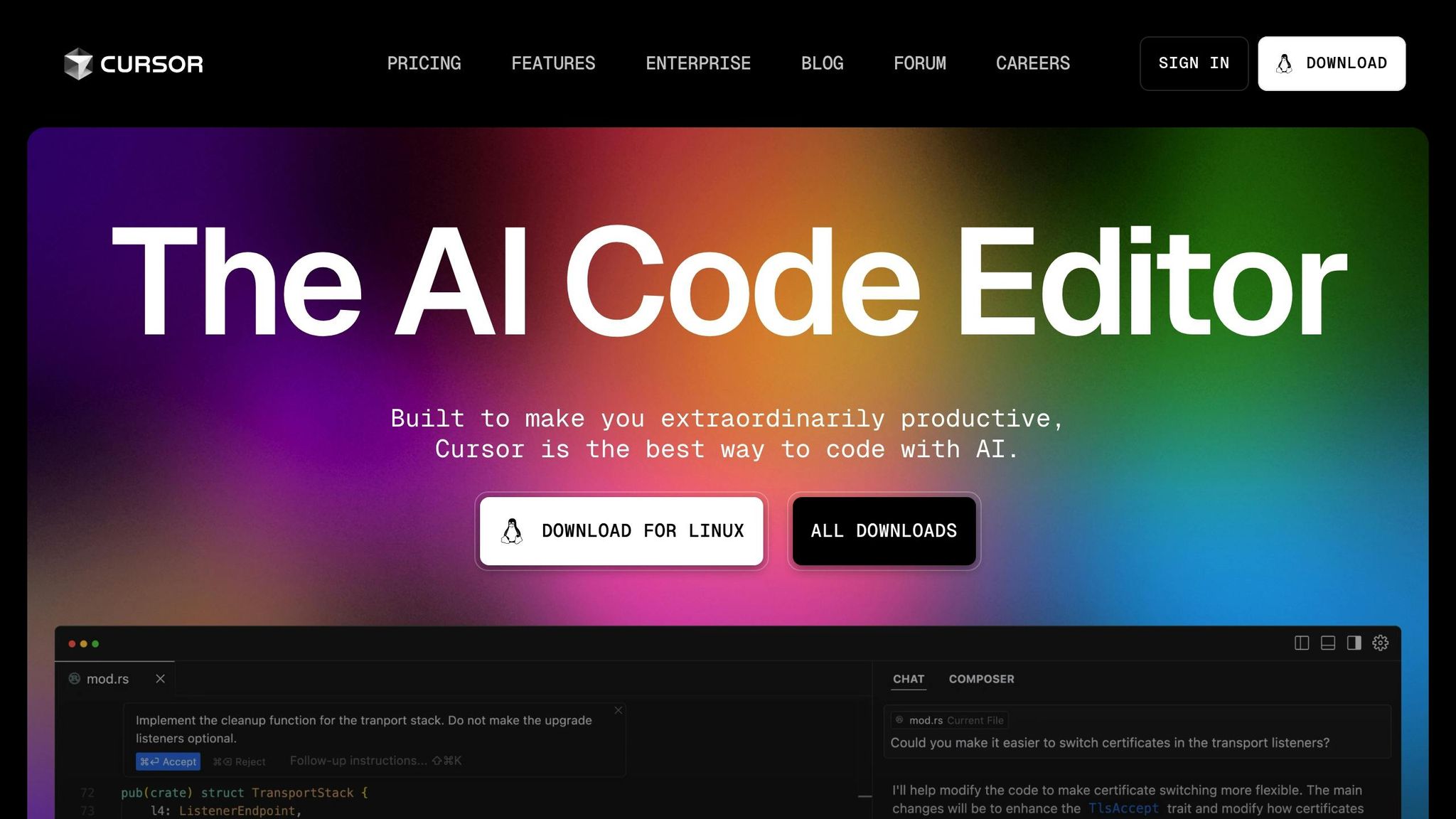
Cursor AI is an AI-powered code editor that combines the look and feel of Visual Studio Code with advanced AI features. It helps developers write code faster by turning natural language into functional code, providing smart suggestions, debugging support, and handling project-wide changes. Backed by $113M in funding and valued at $2.5B, Cursor AI is trusted by engineers at companies like OpenAI.
Key Features:
- Code Completion: Generates multi-line suggestions and full code blocks.
- Text-to-Code: Converts plain English instructions into working code.
- Debugging: Detects errors and suggests fixes in real-time.
- Privacy Mode: Protects sensitive code.
Benefits:
- Cuts coding time by ~50%.
- Works across entire codebases for consistent updates.
- Integrates with tools like Git, Zapier, and Figma.
Getting Started: Download Cursor AI, install it, and import your VS Code settings for a seamless transition. Whether you’re a beginner or an experienced developer, Cursor AI adapts to your workflow and simplifies coding tasks.
Setup Guide
Technical Requirements
Before getting started with Cursor AI, make sure your system meets these minimum requirements:
| Requirement | Specification |
|---|---|
| Operating System | Windows, macOS, or Linux |
| Memory (RAM) | Minimum: 4GB, Recommended: 8GB |
| Internet | Stable broadband connection |
Download and Install
You can download the appropriate installer from the official Cursor AI website.
For Windows and macOS users:
- Download the installer package.
- Run the installation file.
- Follow the steps in the installer wizard.
- Launch Cursor AI once the installation is complete.
For Linux users:
- Download the AppImage file.
- Open a terminal in the download directory and make the AppImage executable using:
chmod a+x cursor-0.40.3x86_64.AppImage - Launch the application by running:
./cursor-0.40.3x86_64.AppImage
Once installed, take some time to explore Cursor AI’s interface to get comfortable with its features.
Basic Navigation
Cursor AI’s interface is similar to a standard IDE but includes added AI-powered functionality. Here’s a quick overview of its key components:
| Interface Element | Purpose |
|---|---|
| Main Dashboard | Central workspace for your coding projects. |
| Editor Pane | Main coding area with syntax highlighting. |
| AI Chat Panel | Direct communication with the AI assistant. |
| Toolbar | Quick access to frequently used functions. |
Handy keyboard shortcuts:
- Ctrl + S: Save your changes.
- Ctrl + Z: Undo your last action.
- Ctrl + Space: Activate AI suggestions.
Cursor AI also offers three modes to tailor your workflow:
- Agent Mode (Default): Full AI assistance for coding tasks.
- Edit Mode: Focus solely on modifying your code.
- Ask Mode: Interact directly with the AI for specific queries.
To make the transition smoother, you can import your VS Code settings, including themes and extensions. The AI features are context-aware, responding to @ symbols to help you reference specific parts of your codebase.
Now, you’re ready to dive into Cursor AI’s main features.
Cursor AI Tutorial for Beginners
Main Features
Cursor AI offers a range of AI-driven tools designed to streamline coding and improve productivity. Here’s a closer look at the features that make it a valuable addition to your development workflow.
Code Completion
Cursor AI goes beyond basic autocompletion by generating entire code blocks based on context. It works with both standard code and natural language commands.
| Feature | What It Does |
|---|---|
| Multi-line Suggestions | Generates complete code blocks, not just single lines |
| Context-aware Completion | Tailors suggestions to your project’s specifics |
| Natural Language Support | Translates plain English into functional code |
| Tab Integration | Easily insert suggestions with the Tab key |
For instance, if you’re writing a function to find the maximum value, start typing the function header, and Cursor AI will suggest the rest. Hit Tab to accept the recommendation. This is especially helpful for repetitive tasks and boilerplate code.
Text-to-Code Generation
With Cursor Composer, you can turn natural language instructions into working code. Provide detailed input, review the generated code for accuracy, and refine it using the chat panel. This feature simplifies coding for both seasoned developers and those new to programming.
Debug Assistant
The Debug Assistant combines AI-driven error detection with real-time optimization. It identifies potential issues and suggests ways to improve your code.
| Feature | How It Helps |
|---|---|
| Automated Error Detection | Spots problems systematically |
| Dynamic Optimization | Recommends performance enhancements |
| Context-aware Fixes | Offers solutions tailored to your codebase |
| Multi-file Analysis | Identifies issues across multiple files in your project |
These debugging tools are trusted by developers at OpenAI and Perplexity to maintain high code quality. With support for various programming languages and seamless integration into different workflows, Cursor AI is a practical choice for developers at any skill level.
sbb-itb-58f115e
Common Uses
Cursor AI offers a range of features that support professionals in different fields, making it a versatile tool for various tasks.
Task Automation
Cursor AI simplifies repetitive coding tasks, allowing developers to focus on more complex problems. It can handle several development processes efficiently.
| Task Type | Automation Advantage |
|---|---|
| Management | Handles imports and resolves conflicts automatically |
| Documentation | Generates documentation using AI |
| Dependency Management | Executes terminal commands automatically |
| Code Refactoring | Cleans up and optimizes code intelligently |
To make the most of these automation features, it’s important to provide clear natural language instructions. While developers benefit greatly, marketing teams can also take advantage of Cursor AI’s capabilities.
Marketing Code Tools
Marketing teams use Cursor AI to quickly create digital assets with the help of its intelligent tools. The Composer feature, for instance, accelerates the creation process.
Here’s how marketing teams can get the best results:
- Project Planning: Start with the V0 feature to create high-quality mockups quickly.
- Web Integration: Use the @Web feature to gather targeted data from the web.
- Template Management: Save working code in
.mdfiles for easy reuse in future campaigns.
This approach ensures faster and more efficient development of marketing assets. Collaboration is another area where Cursor AI shines.
Team Coding
Cursor AI improves collaborative coding by offering built-in version control and communication tools. Its Git integration supports smooth workflows for teams.
| Collaboration Feature | Benefit for Teams |
|---|---|
| Git Integration | Simplifies version control processes |
| Chat Interface | Enables real-time code reviews and suggestions |
| Multi-file Understanding | Maintains consistency across the codebase |
Team members can share suggestions and refactored code directly through the chat interface, ensuring consistent standards across projects.
Usage Tips
Personal Settings
You can tailor Cursor AI to your workflow by tweaking its rules. These include Global Rules and Project-Specific Rules, which allow you to align the tool with your coding standards and project needs.
Here’s a quick guide:
| Rule Type | Where to Configure |
|---|---|
| Global Rules | Cursor Settings (under "General" > "Rules for AI") |
| Project-Specific Rules | .cursorrules file in the project root or .cursor/rules directory |
Customizing these settings ensures Cursor AI behaves in a way that suits your specific projects.
Problem Prevention
To avoid potential hiccups, keep these tips in mind:
"AI won’t write production-ready software for you, but it’s great at writing code, collaborating on architecture, and explaining complex code. I often ask Cursor to teach me, rather than just do the work for me – or have it do the work, and then explain it."
- Jonathan Flower
- Save your work often using Git or backups.
- When using Composer, include all necessary files and enable extended context.
- Break down complex changes into smaller, manageable steps.
- Use shortcuts (like Command K) to speed up code modifications.
- Keep an eye on AI output and pause if it starts to veer off track.
- Turn on logging to better track changes and troubleshoot issues.
By following these steps, you can make the most of Cursor AI while minimizing disruptions.
Tool Connections
Cursor AI integrates seamlessly with tools like Zapier, enabling you to automate workflows across more than 7,000 apps. These integrations add extra functionality, helping you streamline coding and related tasks.
"Ops wants speed. IT wants oversight. Zapier’s AI automation gives everyone the best of both worlds with one place to build, manage, and govern workflows that power your business."
A great example comes from Remote.com:
"Just last month, we had 1,100 help desk requests from our 1,700 employees. Normally, that many requests would overwhelm our team of three, but through our help desk workflows in Zapier, we resolved them easily. Our team of three is able to perform like a team of 10."
- Marcus Saito, Director of IT at Remote.com
For designers and developers, Cursor AI also connects with Figma through VS Code extensions, making it possible to generate code directly from design files. This feature bridges the gap between design and development, saving time and effort.
Summary
Key Benefits Review
A recent survey reveals that 84.4% of programmers use AI coding tools, showing how essential these tools are becoming in modern development.
Cursor AI stands out in three main areas:
| Benefit | Description | Performance Metrics |
|---|---|---|
| Speed | Generates and completes code quickly | Reduces completion times |
| Intelligence | Offers context-aware suggestions | Supports over 15 programming languages |
| Integration | Fits seamlessly into workflows | Compatible with VS Code and version control tools |
Cursor AI tailors its suggestions to match your coding style, delivering faster results compared to tools like ChatGPT. This personalization ensures more accurate recommendations over time, boosting productivity and making onboarding straightforward.
Getting Started Steps
Start using Cursor AI with these simple steps:
- Download and install Cursor from the official website.
- Import your VS Code settings for a seamless transition.
- Activate AI features with the 14-day Pro trial.
For the best experience, enable the codebase context feature. This allows the AI to analyze your entire project, offering more precise suggestions and smarter code completions.
Cursor AI is designed to handle both basic and advanced coding tasks while keeping the interface easy to navigate. Whether you’re creating new functions, refining existing code, or debugging, Cursor AI adjusts to your needs and suggests cleaner, more efficient solutions.
Related Blog Posts
- SEO Optimization with AI: A Step-by-Step Prompt Guide
- How To Create An AI Agent With Relevance.ai (Quick & Easy Guide)
- How To Automate Your Business & Marketing With AI Agents (Beginner’s Guide)
- What Is ChatGPT Operator? Here’s Everything You Need To Know
Put this into practice: browse AI coding prompts and Claude prompts in the God of Prompt library — copy, paste, and run.
Prompts for this topic
Put this article to work with ready-to-use prompts from the God of Prompt library.
Keep reading

Claude Code vs Cursor (2026): Which AI Coding Tool Wins?
Claude Code vs Cursor compared for 2026. Features, pricing, and honest verdicts to help you pick the right AI coding tool, even if you’re not a developer.


Building Apps With Cursor and Claude AI
Accelerate your app development with AI-driven code generation and debugging, enhancing collaboration and productivity throughout the process.

What Are No-Code Automations? (Automations For Beginners)
Learn how no-code automation simplifies workflows, saving time and enabling non-technical users to streamline processes efficiently.

The best of the blog, in your inbox
One email when notable prompts, tools, and model updates land. No spam, unsubscribe anytime.
Join 100,000+ subscribers. One email a week, real prompts, tools, and model updates. Unsubscribe anytime.